· 03/17/2024 ·
Intel® Transparent Supply Chain (Intel® TSC) Linux Local Verify Tool
The Intel® Transparent Supply Chain (Intel® TSC) Linux Local Verify Tool is an essential resource designed to enhance transparency in manufacturing processes by enabling IT departments to validate platform data. This article outlines the tool's purpose, system requirements, and commands. The Intel TSC Linux Local Verify Tool supports popular Linux distributions such as Redhat, Ubuntu, and CentOS. Additionally, this article details command syntax, customization options, output formats, and error-handling procedures.
Intel Transparent Supply Chain policies and procedures
The Intel TSC comprises policies and procedures that OEMs/ODMs use while manufacturing their products. This process occurs before the products are shipped. The OEMs then use the information collected to ensure transparency in their manufacturing process. IT departments use the information produced by the Intel TSC to validate their platforms. Intel TSC helps provide an ecosystem of trusted providers from transparent manufacturing processes that IT departments can rely on for products.
Transparent Supply Chain overview
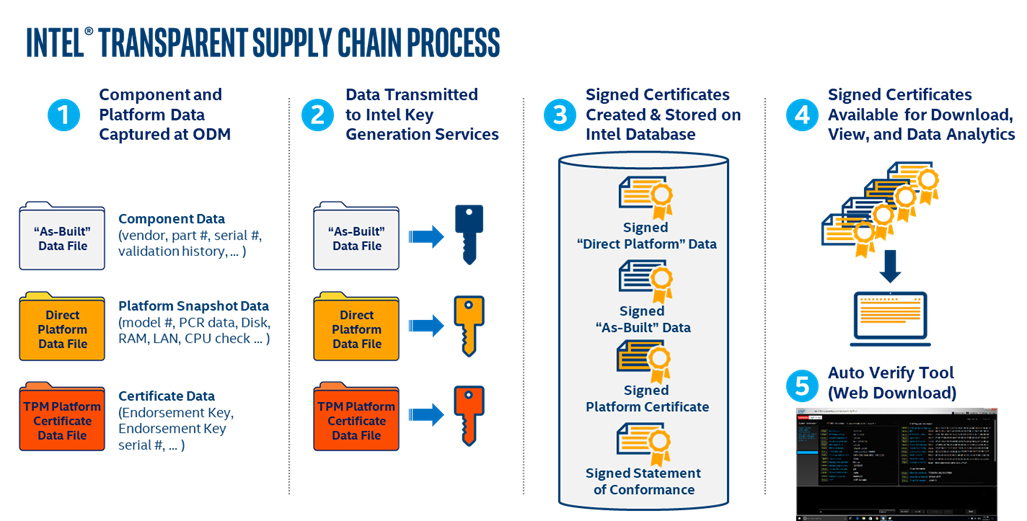
The Intel Transparent Supply Chain is composed of five separate processes:
- Component and Platform data is collected in real-time at the ODM Factory using tools that read the platform information during manufacturing.
- Data collected at the ODM is securely transmitted to Intel using Secure File Transfer Protocol (SFTP).
- Once Intel receives the data collected during the manufacturing process, the data is signed by Intel at Intel’s High-Security signing facility using Intel’s Signing Certificate Authority.
- The signed data files are then uploaded to the Intel TSC database for storage and retrieval by the web portal.
- The Intel TSC web portal enables the user to download the Local Verify Tool and the signed platform data files.
Intel TSC Local Verify Tool system requirements
The Linux version of the Intel TSC Local Verify Tool runs on Linux Operating Systems such as Redhat, Ubuntu, and CentOS. The Intel TSC Verify Utility is distributed in signed RPM files TSC_MFGTool_Linux_Client_x86_64.rpm and TSC_MFGTool_Linux_Server_x86_64.rpm depending on the form factor data in use.
The TSC_MFGTool_Linux_Client_x86_64.rpmandTSC_MFGTool_Linux_Server_x86_64.rpm` files contain the following:
root@kjmoraji-mobl1:/home/root/releases/tsc_verify/TSCVerify# ls -la --recursive
.:
total 70788
-rwxrwxrwx 3 tsc tsc 4096 Oct 23 09:43 .
-rwxrwxrwx 6 tsc tsc 4096 Oct 23 09:43 ..
-rwxrwxrwx 1 tsc tsc 383 Oct 22 13:39 DirectPlatformData.ini
-rwxrwxrwx 1 tsc tsc 72469166 Oct 22 13:39 TSCVerifyTool
-rwxrwxrwx 2 tsc tsc 4096 Oct 23 09:43 XSD
./XSD:

total 76
-rwxrwxrwx 2 tsc tsc 4096 Oct 23 09:43 .
-rwxrwxrwx 3 tsc tsc 4096 Oct 23 09:43 ..
-rwxrwxrwx 1 tsc tsc 7953 Oct 22 13:39 PCDFile_v2.xsd
-rwxrwxrwx 1 tsc tsc 10064 Oct 22 13:39 dcdSchema.xsd
-rwxrwxrwx 1 tsc tsc 13975 Oct 22 13:39 dpdSchema.xsd
-rwxrwxrwx 1 tsc tsc 18164 Oct 22 13:39 dpdSignedSchema.xsd
1 tsc tsc 10610 Oct 22 13:39 xmldsig-core-schema.xsd
Note
Make sure to run the chmod command before running the utility: chmod 777 *
smartmontools for reading drive data
Install the smartmontools package on your system so the tool reads drive data from your system
nVidia GPU support
Systems with nVidia GPUs must install the nVidia graphics driver before running the Intel TSC Verify Utility. The Intel TSC Verify Utility calls the NVIDIA driver to get a list of nVidia GPUs installed.
NVME drive support
You must install the NVMe SSDs and the NVMe Command Line Interface (NVMe-CLI) before running the Intel TSC Verify Utility. Once installed, the Intel TSC Verify Utility executes the nvme-cli, which will return the nVME drives in the system.
nvme-cli-1.8.1-3.el7.x86_64.rpm
BMC support
You must install the ipmitool command line interface before running the Intel TSC Verify Utility. Once installed the Intel TSC Verify Utility will execute the ipmitool interface which will return the information about baseboard management controller in the system. The ipmitool CLI can be installed from:
Ubuntu/Debian: apt install ipmitool
CentOS/RedHat: yum/dnf install ipmitool
Intel TSC Verify Utility commands
The Intel TSC Verify Utility is a Command Line Input executable that runs in a Linux terminal.
The Intel TSC Verify Utility has the following commands:
SCANSYSTEM – This command scans the platform to read the current platform values and outputs the platform component values to the console. No input or output file is associated with the SCANSYSTEM command; the output is directed to the console. Use the SCANWRITE command to write the platform component values to a file.
READFILE - This command reads the Direct Platform Data (DPD) file specified by the –in option and outputs the values to the console. Only one input file is allowed for this command.
SCANREADCOMP - This command scans the platform to read its current values. It then reads the DPD file specified by the –in option and compares the values. The comparison results are output to the console. If the –fl flag is included, the results are also written to the specified output file.
PFORMCRTCOMP - This command compares the contents of the signed Platform Attribute Certificate file specified by the –in option to the current information from the system. It detects changes in elements like the EK Serial Number from the Trusted Platform Module and the Platform Serial Number in the system. It also compares the platform configuration from the file against the current components of the system. The results of the comparison are sent to the console. The command indicates whether changes were detected at the system or component level as yellow warning messages.
If the result of the comparison is successful, then a success message is displayed saying PFORMCRTCOMP PASS.
If the result of the comparison is not successful, then it displays PFORMCRTCOMP FAIL. It also shows the differences line by line in red.
CASIGVERIFY - This command verifies the signature of the Intel TSC Issuing CA file against the Intel TSC Root CA certificate. The Intel TSC Issuing CA file is specified using the –in option. The CASIGVERIFY command can only verify one file at a time.
Command line syntax
Here is the command line syntax for the available commands and options:
The following is the Command Line Syntax of commands and options:
SCANSYSTEM
| Tool | Command | Options | Description |
|---|---|---|---|
| TSCVerifyTool | SCANSYSTEM |
vl/, vl |
Flag to turn on verbose messages. |
-notpm, /notpm |
Flag to allow user to collect DPD on nonTPM system or board. | ||
-nohdd, /nohdd |
Flag to allow user to skip the hard drive in generating DPD file. | ||
-ecc, /ecc |
Flag to generate the platform certificate with ECC algorithm. | ||
-server, /server |
Flag to support server features: BMC, FRU, SDR & etc. | ||
-ini, /ini |
Flag allows user to pass the file location of the configuration.ini file. | ||
dsg, /dsg |
Flag to support DSG server configuration. |
READFILE
| Tool | Command | Options | Description |
|---|---|---|---|
| TSCVerifyTool | READFILE |
-V1, /VL |
Flag to turn on verbose messages. |
-in, /in |
Flag allows user to read from input file. | ||
-ca, /ca |
Flag allows user to load CA cert. | ||
vm, /vm |
Flag to enable execution under virtual environment (VM, container & etc.). | ||
-notpm. /notpm |
Flag to allow user to collect DPD on nonTPM system or board. | ||
-server, /server |
Flag to support server features: BMC, FRU, SDR & etc. | ||
dsg, /dsg |
Flag to support DSG server configurations. |
SCANREADCOMP
| Tool | Command | Options | Description |
|---|---|---|---|
| TSCVerifyTool | SCANREADCOMP |
-vl, /vl |
Flag to turn on verbose messages. |
-in, /in |
Flag allows user to read from input file. | ||
-ca, /ca |
Flag allows user to load CA cert. | ||
-vm. /vm |
Flag to enable execution under virtual environment (VM, container & etc. | ||
-notpm, /notpm |
Flag to allow user to collect DPD on nonTPM system or board. | ||
-nohdd, /nohdd |
Flag to allow user to skip the hard drive in generating DPD file. | ||
ecc, /ecc |
Flag to generate the platform certificate with ECC algorithm. | ||
-server, /server |
Flag to support server features: BMC, FRU, SDR & etc. | ||
-in, /in |
Flag allows user to pass the file location of the configuration.ini file. | ||
dsg, /dsg |
Flag to support DSG server configurations. | ||
-lbl, /lbl |
Flag to display the compare output line by line. | ||
-noamt, noamt |
Flag to skip the Intel(r) AMT bit verification. | ||
-json, /json |
Flag to generate the platform component change file in json format. |
PFORMCRTCOMP
| Tool | Command | Options | Description |
|---|---|---|---|
| TSCVerifyTool | PFORMCRTCOMP |
-v1, /vl |
Flag to turn on verbose messages. |
-in, /in |
Flag allows user to read from input file. | ||
-ca, /ca |
Flag allows user to load CA cert. | ||
-notpm, /notpm |
Flag to allow user to collect DPD on nonTPM system or board. | ||
-nohdd, /nohdd |
Flag to allow user to skip the hard drive in generating DPD file. | ||
-server, /server |
Flag to support server features: BMC, FRU, SDR & etc. | ||
-ini, /ini |
Flag allows user to pass the file location of the configuration.ini file. | ||
ecc, /ecc |
Flag to generate the platform certificate with ECC algorithm. | ||
dsg, /dsg |
Flag to support DSG server configurations. | ||
-noamt, noamt |
Flag to skip the Intel(r) AMT bit verification. |
CASIGVERIFY
| Tool | Command | Options | Description |
|----------------|---------------|---------------------|---------------------------------------------------------------------------------|
| TSCVerifyTool | CASIGVERIFY | -in, /in | Flag allows user to read from input file. |
| | | -server, /server | Flag to support server features: BMC, FRU, SDR & etc. | | | | dsg, /dsg | Flag to support DSG server configurations. | | | |ecc, /ecc` | Flag to generate the platform certificate with ECC algorithm. |
WRITEDELTAFILE
| Tool | Command | Options | Description |
|---|---|---|---|
| TSCVerifyTool | WRITEDELTAFILE |
-in, /in |
Flag allows user to read from input file. |
-ca, /ca |
Flag allows user to load CA cert. |
Miscellaneous options
The flags listed below can be used with any of the commands listed in the above tables.
| Tool | Command | Options | Description |
|---|---|---|---|
| TSCVerifyTool | -vl, /vl |
Flag to turn on verbose messages. | |
-notpm, /notpm |
Flag to allow user to collect DPD on nonTPM system or board. | ||
-nohdd, /nohdd |
Flag to allow user to skip the hard drive in generating DPD file. | ||
-noamt, noamt |
Flag to skip the Intel(r) AMT bit verification. | ||
ecc, /ecc |
Flag to generate the platform certificate with ECC algorithm. | ||
-server, /server |
Flag to support server features: BMC, FRU, SDR & etc. | ||
dsg, /dsg |
Flag to support DSG server configurations. |
Utility Tool status return value
The Intel TSC Verify Utility returns an integer value for pass and fail: Return values.
- 0 - PASS
- 1 - FAIL
Scan System command SCANSYSTEM
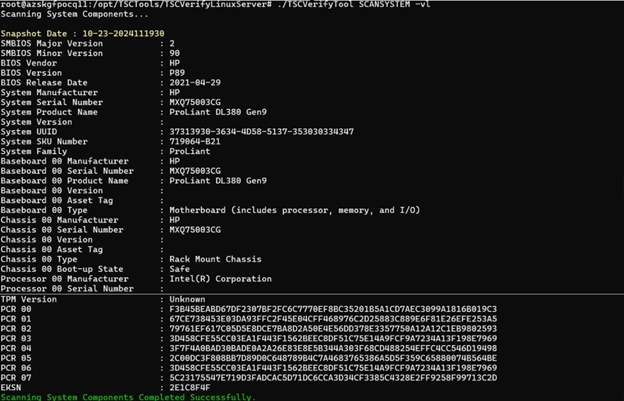
This command scans the platform to read the current platform values and sends the platform component values to the console. The SCANSYSTEM command does not involve an input or output file; all output is directed to the console.
The SCANSYSTEMcommand performs the following operations:
- Reads the System BIOS DMI Tables for BIOS, system, motherboard, chassis, processor, memory, security/AMT, power supplies, and batteries.
- Reads the Trusted Platform Module PCR registers, the public endorsement key, and the endorsement key serial number.
- Reads the drive information (note: removable drives are not scanned).
Read file command READFILE
This command reads the DPD file specified by the –in option and sends the output to the console. The Intel TSC Issuing CA file is specified by the –ca option. There is only one input file for this command.
The Direct Platform Data file is a signed XML file. Once the DPD file has been read, the XML signature of the XML file is verified against the TSC_Issuing CA.
If the DPD file XML signature does not match, the following error message will be displayed:
ERROR: Failed to verify signed DPD file. XML verification failed: The XML signature is not valid.
Scan system read file compare SCANREADCOMP
This command scans the platform to read the current platform values. It then reads the DPD file specified by the -in option and the Intel TSC Issuing CA file specified by the -ca file option. The utility compares the current platform values to the values in the DPD file and outputs the results to the console. Additionally, a platform comparison file is created with a summary of the command's results.
After the comparison operation has been completed, two success messages are displayed. The first indicates that PCR information matched the system, and the second indicates that all the component information matched the system.
Any changes are displayed in the output.
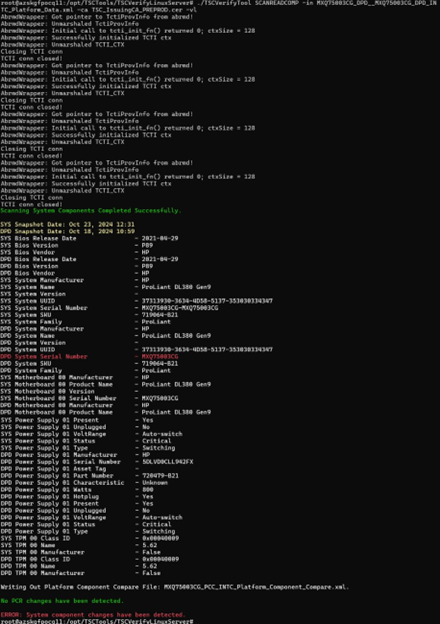
The changes between the System Snapshot data and the DPD are displayed line by line.
Error messages are displayed if the changes were detected on the TPM PCR or system component level.
Platform component compare data tile PFORMCRTCOMP
After the comparison is performed, a Platform Component Compare data XML file is written.
The Platform Component Compare data file is written when the compare operation is completed. If the results of the Compare operation match, the data file Compare Results is true.
<?xml version="1.0" encoding="utf-8"?>
<PlatformComponentCompare ver="1">
  <Header>
    <SystemSN>MXQ75003CG-MXQ75003CG</SystemSN>
    <Manufacturer>HP</Manufacturer>
    <Model>ProLiant DL380 Gen9</Model>
    <DateTime>2024-10-23T12:31:06</DateTime>
    <OEM>HP</OEM>
    <ODM>HP-10.0.0</ODM>
  </Header>
  <CompareResults>
    <ComponentChangeCount>0</ComponentChangeCount>
    <ComponentScanCount>19</ComponentScanCount>
    <CompareResult>True</CompareResult>
  </CompareResults>
</PlatformComponentCompare>
Component changes
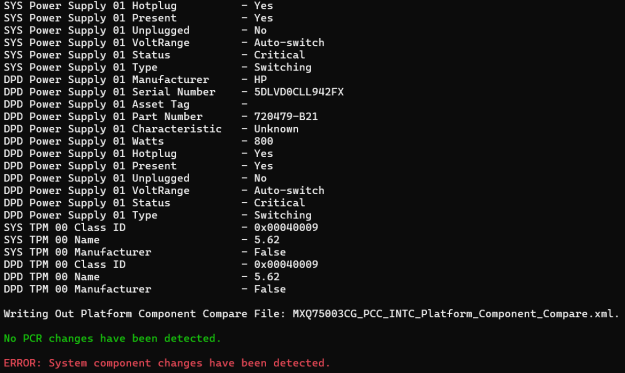
If the results of the Compare operation return change, the data file Compare Results is false, along with the components that have changed.
<?xml version="1.0" encoding="utf-8"?>
<PlatformComponentCompare ver="1">
  <Header>
    <SystemSN>MXQ75003CG-MXQ75003CG</SystemSN>
    <Manufacturer>HP</Manufacturer>
    <Model>ProLiant DL380 Gen9</Model>
    <DateTime>2024-10-23T12:31:06</DateTime>
    <OEM>HP</OEM>
    <ODM>HP-10.0.0</ODM>
  </Header>
  <CompareResults>
    <ComponentChangeCount>1</ComponentChangeCount>
    <ComponentScanCount>19</ComponentScanCount>
    <CompareResult>False</CompareResult>
  </CompareResults>
  <ComponentChanges>
    <ComponentChange id="0">
      <ComponentType>System</ComponentType>
      <ComponentName>Default</ComponentName>
      <SystemValue>MXQ75003CG-MXQ75003CG</SystemValue>
      <SnapshotValue>MXQ75003CG</SnapshotValue>
    </ComponentChange>
  </ComponentChanges>
</PlatformComponentCompare>
Platform component compare data file XML schema
The Platform Component Compare data file xml schema is as follows:
<xs:schema attributeFormDefault="unqualified" elementFormDefault="qualified" xmlns:xs="http://www.w3.org/2001/XMLSchema">
    <xs:element name="PlatformComponentCompare">
        <xs:complexType>
            <xs:sequence>
                <xs:element name="Header" maxOccurs="1" minOccurs="0">
                    <xs:complexType>
                        <xs:sequence>
                            <xs:element type="xs:string"   name="SystemSN"/>
                            <xs:element type="xs:string"   name="GUID" maxOccurs="1" minOccurs="0"/>
                            <xs:element type="xs:string"   name="Manufacturer"/>
                            <xs:element type="xs:string"   name="Model"/>
                            <xs:element type="xs:dateTime" name="DateTime"/>
                            <xs:element type="xs:string"   name="OEM"/>
                            <xs:element type="xs:string"   name="ODM" maxOccurs="1" minOccurs="0"/>
                            <xs:element type="xs:string"   name="MfgPubKeyHash" maxOccurs="1" minOccurs="0"/>
                        </xs:sequence>
                    </xs:complexType>
                </xs:element>
                <xs:element name="CompareResults" maxOccurs="1" minOccurs="0">
                    <xs:complexType>
                        <xs:sequence>
                            <xs:element type="xs:boolean"   name="CompareResult"/>
                            <xs:element type="xs:int"       name="ComponentScanCount"/>
                            <xs:element type="xs:int"       name="ComponentChangeCount"/>
                        </xs:sequence>
                    </xs:complexType>
                </xs:element>
                <xs:element name="ComponentChanges" minOccurs="0">
                    <xs:complexType>
                        <xs:sequence>
                            <xs:element name="ComponentChange" maxOccurs="unbounded" minOccurs="0">
                                <xs:complexType>
                                    <xs:sequence>
                                        <xs:element type="xs:string" name="ComponentType" maxOccurs="1" minOccurs="0"/>/>
                                        <xs:element type="xs:string" name="ComponentName"maxOccurs="unbounded" minOccurs="0"/>
                                        <xs:element type="xs:string" name="SystemValue"maxOccurs="unbounded" minOccurs="0"/>
                                        <xs:element type="xs:string" name="SnapshotValue"maxOccurs="unbounded" minOccurs="0"/>
                                    </xs:sequence>
                                    <xs:attribute type="xs:short" name="id"/>
                                </xs:complexType>
                            </xs:element>
                        </xs:sequence>
                    </xs:complexType>
                </xs:element>
            </xs:sequence>
            <xs:attribute type="xs:string" name="ver"/>
        </xs:complexType>
    </xs:element>
</xs:schema>
Platform certificate compare command PFORMCRTCOMP
The command compares the contents of the signed Platform Attribute Certificate file, specified using the –in option, with the current system information. It detects changes in elements such as the EK Serial Number from the Trusted Platform Module and the Platform Serial Number in the system. Additionally, it compares the platform configuration from the file against the current system components. The comparison results are then output to the console.
The command indicates whether changes are detected at the system or component level as yellow warning messages.
If the result of the comparison is successful, the following message is displayed.
PFORMCRTCOMP PASS.
If the result of the comparison is not successful, the following message is displayed.
PFORMCRTCOMP FAIL.
It will also show the differences line by line in red.
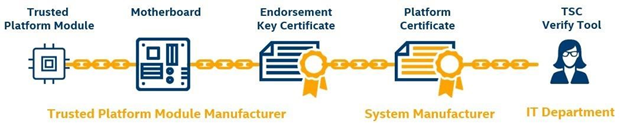
The Platform Certificate Verify function checks the Platform Certificate file issued for the platform against the platform itself, using the TPM as the hardware root of trust. This function verifies that the system manufacturer, version, serial number, and motherboard serial number match the values in the signed platform certificate.
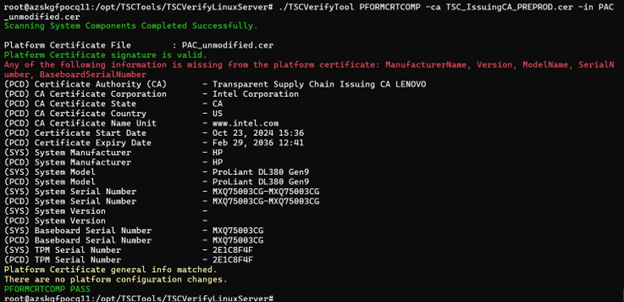
If the Platform Certificate matches the System values, the following mesaages are displayed:
Platform Certificate general info matches.
There are no platform configuration changes.
Also, a message indicating the command ran successfully is displayed:
PFORMCRTCOMP PASS.
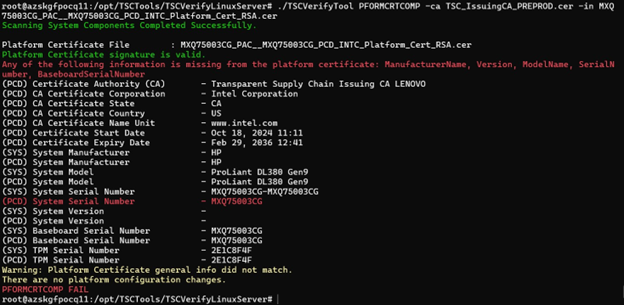
If the platform certificate does not match the system values, one of two messages will be displayed:
Platform Certificate general info did not match: This message appears when the mismatch is related to values such as Serial Number, Model, Manufacturer, EK TPM Serial Number, and others.
There are platform configuration changes: This message appears when the differences are related to the configuration of platform components. All differences will be highlighted in red.
Also, a message indicating the command did run successfully is displayed:
PFORMCRTCOMP FAIL
CA signature verify command CASIGVERIFY
This command verifies the signature of the Intel TSC Issuing CA file against the Intel TSC Root CA certificate. Use the –in option to specify the Intel TSC Issuing CA file. Note that the CASIGVERIFY command can only verify one file at a time.
When the Issuing CA signature is not valid, an error message is displayed.

The Intermediate Certificate Authority file contains a public key used to verify the signature of the Platform Certificate file and the Direct Platform Data file.
Download the Intermediate Certificate Authority file and save it on your system. If you need help locating the Issuing CA, contact the Intel TSC web portal team for assistance in retrieving your Issuing CA.cer file. See the Transparent Supply Chain data files article for more information.
Open-Source acknowledgements
This product includes software developed by the open-source community.
Bouncy Castle (Version 1.9) Bouncy Castle is a collection of APIs used in cryptography. It is licensed under the MIT License. Copyright (c) 2021 The Legion of the Bouncy Castle Inc. (https://www.bouncycastle.org) For more details, see the Bouncy Castle License: https://www.bouncycastle.org/licence.html
Microsoft TSS (Version 2.1.1) Microsoft TSS is a library for TPM 2.0. It is licensed under the MIT License. Copyright (c) 2019 Microsoft Corporation For more details, see the Microsoft TSS License: https://github.com/Microsoft/TSS.MSR/blob/main/LICENSE